NIVA ‘26 Conference App
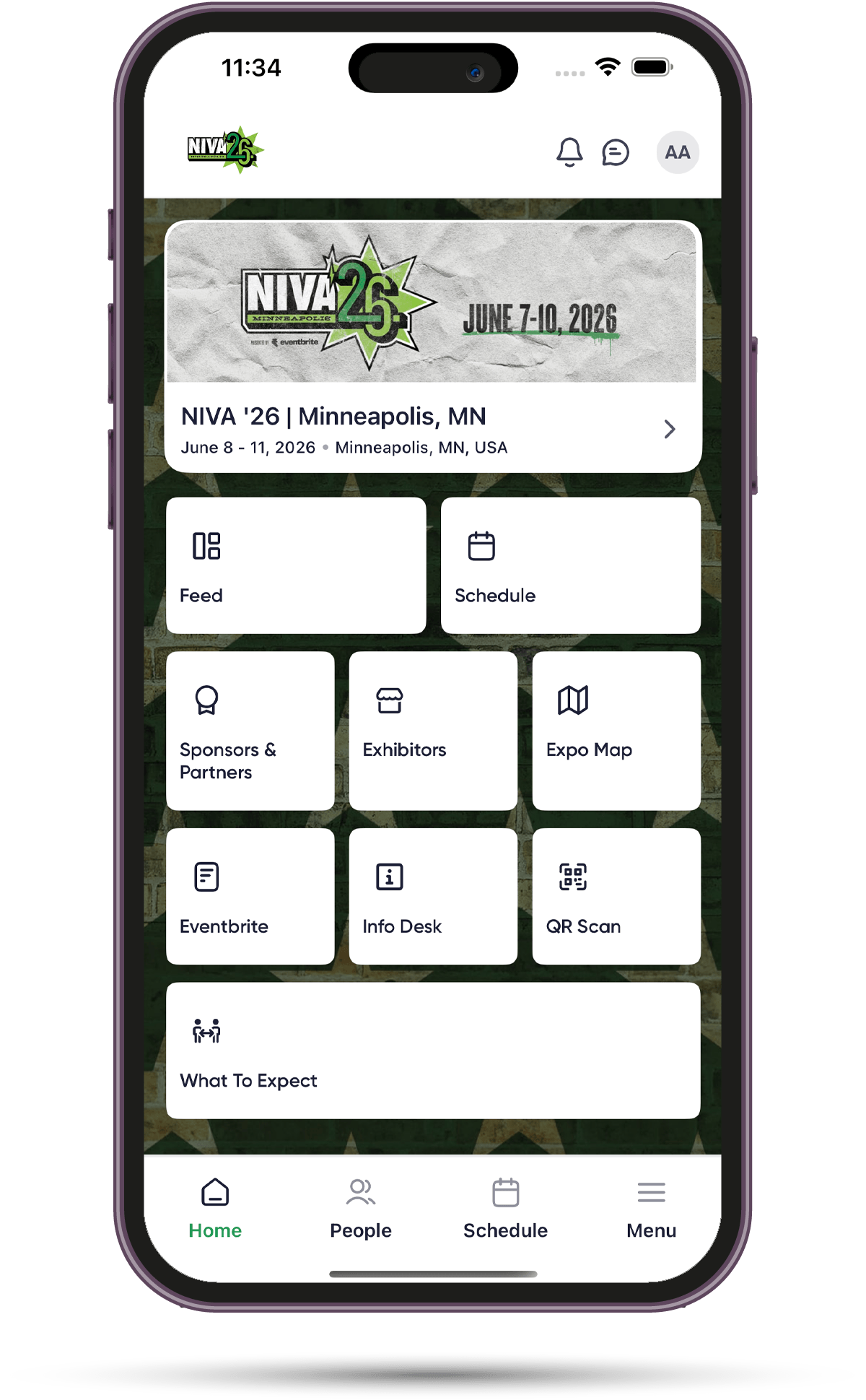
Your all-in-one guide to the NIVA ‘26 conference is here! Browse sessions and speakers, plan your agenda, find your way around, get real-time updates, and connect with fellow attendees–all from the official conference app.
Use the email address from your conference registration to log in.
For the best experience, enable push notifications to get instant alerts about announcements, last-minute updates, and more.

Login with your attendee email address
Download the NIVA ‘26 App

For iPhone Users:
Apple App Store
Having issues with the links? You can also search for ”NIVA Con” in the Apple App Store (iPhone) or Google Play Store (Android).

For Android Users:
Google Play Store
Frequently Asked Questions
-
Log In Without a Password via Magic Link
After downloading the app, enter your attendee email address, click Continue with Email, and click Send magic link. Once you get the email, click the link to log in to the app. That's it! Event admins can also send you the magic link email.Log In Using a 4-Digit Code
If the magic link isn’t functioning properly, you can log in to the app using the 4-digit code in the magic link email you requested through the app. This code is refreshed each time you request one. Simply click "Enter code" in the app, then enter the 4-digit code and hit Sign In.Help! I still can’t log in.
Email us at conference@nivassoc.org. For onsite troubleshooting, stop by the registration desk or NIVA HQ in Dudley Riggs Theatre.
-
Customize your profile to share information about yourself and connect with other attendees.
Click your initials in the upper right corner to access your profile.
Click View Profile to update your personal information and enter your social links. You can also take a photo of yourself or upload one from your phone's library to add as your profile photo.
Click the check icon in the upper right to save any changes you've made.
To see what your profile would look like, go to the People tab and click on yourself. You can also edit your profile when you view it in the People tab.
Manage your privacy settings to choose how visible you are to other attendees and how they can connect with you.
Click your initials or your profile photo in the upper right corner to access your profile.
Click Settings and use the toggles to adjust your privacy settings.
-
Managing your privacy settings helps you control how other attendees find and connect with you during the event.
Click your initials or your profile photo in the upper right corner to access your profile.
Click Settings and use the toggles to adjust your privacy settings.
Accept meeting requests: When enabled, it allows other attendees to schedule a meeting with you.
Accept direct messages: When enabled, it allows other attendees to send you a private message by clicking the chat icon on your profile.
Offline email notifications: When enabled, you will receive email notifications when a meeting or connection request has been sent.
Hide contact info from exhibitors: When enabled, your information will be hidden from exhibitors.
Show profile info on People tab: When enabled, your profile will be visible to other attendees in the People tab.
Allow calls & videos from attendees not connected with: When enabled, other attendees can call you by clicking the camera icon on your profile.
Meeting Availability: This opens a calendar where you can select your availability, which appears when people set up a meeting with you.
-
Connections in the app are like friend requests. Staying connected is a way to remember who you interacted with during the event and a great way to expand your professional and social networks. You should see all your connections through the People tab in the app.
How to request a connection:
Click on an attendee profile in the People tab, then click the Connect button below their profile picture to request a connection.
The button will turn grey after sending the request.
Once the attendee approves your request, the button will disappear, and they will be added to your Connected tab.
Using the QR code:
Click QR Code on the app Home screen.
Click the Scan QR code button to open the camera* to scan another attendee’s QR code. (*The QR code must be scanned through the app. It will not work if you scan it directly from your mobile camera.)
The attendee’s profile should appear on your screen after scanning.
Click the Connect button to request to be connected.
-
You may have push notifications turned off. To receive push notifications on your phone, ensure notifications are enabled for the NIVA conference app on your device.
Ensure your device is not in focus mode, do not disturb mode, or low power mode. This may affect your ability to receive push notifications.
-
The Q&A tab in each session* will allow you to view publicly submitted questions and submit your own questions. (*Please note not all sessions will have Q&A.)
Click on a session in the Schedule.
If Q&A is enabled for that session, you will see a View Details button at the bottom of the screen. Click the button.
Click on the Activity tab at the top of the screen.
Click the Q&A tab. (Please note that Chat functionality is disabled for all sessions.)
You can see all publicly submitted questions and you will also have the option to submit your own question.
Conference staff will read questions aloud during the session for panelists to answer. Answers will not appear in the app.
-
Interest Tags allow you to choose topics of interest and that will help you get matched with other attendees who have the same interests. Your selected Interest Tags will be seen by other attendees if they view your attendee profile.
You can manage your Interest Tags by editing your attendee profile. Under the Interests section, select from a list of pre-populated interests or create your own.
If other attendees select the same interests as you, you will see their profile tile in the Suggested section of the People tab. This feature streamlines the process of finding like-minded individuals, making it effortless to connect with those who share your passions.
-
The Lobby Feed acts as a social media wall for the entire conference. It’s a central newsfeed where attendees stay informed through announcements, insights, and community interaction.
From session highlights and hot takes to meetup plans and late-night recs, the Lobby Feed keeps the NIVA community connected. All attendees are encouraged to post, like, and comment in the Lobby Feed. Posts can include text, emojis, images, and files.